Reposted a TikTok by mistake, or changed your mind about a video you shared? Deleting a repost on TikTok takes about ten seconds once you know where to look. This updated guide walks you through the current (2026) steps — including the Reposts tab, the Share-button method, and what to do when the “Remove repost” option refuses to appear.
- What Reposting on TikTok Actually Does
- Repost vs. Share: What’s the Difference?
- Finding the Repost You Want to Delete
- How to Delete a Repost on TikTok (2026 Steps)
- Two Even Faster Shortcuts
- What Happens After You Remove a Repost
- Can You Delete All Reposts at Once?
- When “Remove Repost” Doesn’t Appear: Troubleshooting
- Common Pitfalls to Avoid
- A Note for Malaysian and Singaporean Users
- Conclusion
- Frequently Asked Questions
What Reposting on TikTok Actually Does
Tapping the yellow Repost button pushes that video to your followers’ For You feeds, labelled as a repost with your profile photo and nickname beside it. The video also appears on your profile under a dedicated Reposts tab — the two-arrows icon next to your own videos. It does not become one of your own posts, and it doesn’t sit in your main video grid.
In other words, a repost is a public endorsement. That’s exactly why an accidental repost — or one that no longer fits your vibe, brand, or values — is worth cleaning up. If your account is private, only your approved followers can see your reposts; if it’s public, anyone visiting your profile can browse the Reposts tab.
Repost vs. Share: What’s the Difference?
| Feature | Repost | Share (Send to) |
| Visibility | Public — shown to your followers in their For You feed and listed in your profile’s Reposts tab | Private — sent directly to a person or group chat; nothing appears on your profile |
| Label | Marked “Reposted” with your name and photo on the video | No public label; the recipient just receives the video |
| Impact | Shapes how visitors and followers perceive your account — it reads as an endorsement | No effect on your public profile |
| Reversible? | Yes — “Remove repost” deletes it from your tab and followers’ feeds | Can’t be unsent once delivered |
If you only wanted to show a video to one friend, use Share/Send to. Repost is for broadcasting to everyone who follows you — which is why it’s the one you sometimes need to undo.
Finding the Repost You Want to Delete
Older guides (including an earlier version of this one) said TikTok had no dedicated section for reposts. That’s no longer true — every profile now has a Reposts tab. Three ways to track down the offending video:
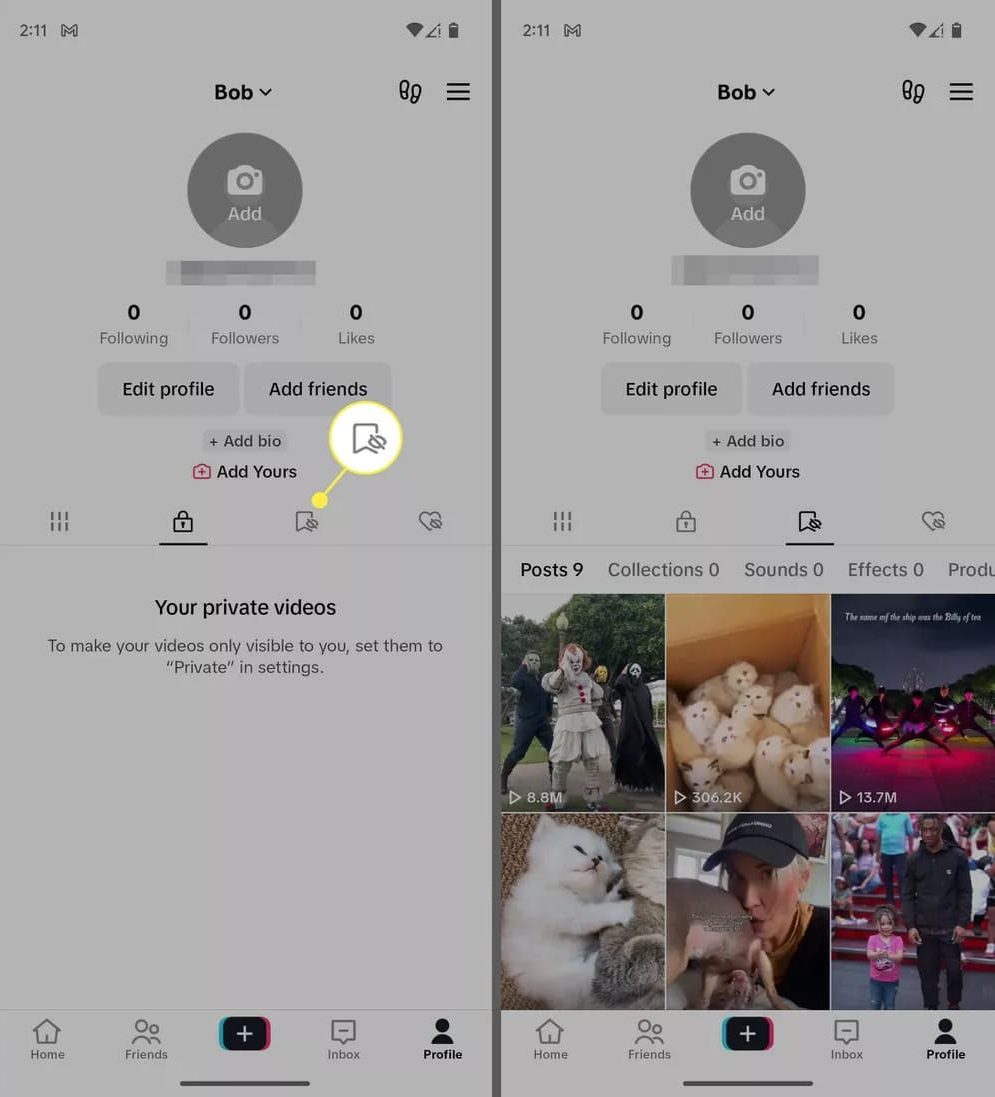
- Reposts tab (fastest): Go to your profile and tap the two-arrows icon in the row of tabs above your video grid. Every video you’ve reposted is listed there, newest first.
- Watch history: Tap Profile → ☰ → Activity Centre → Watch history. TikTok keeps roughly the last 180 days of watched videos, which usually includes anything you reposted recently. Our guide on how to see your TikTok watch history covers this in detail.
- Search with keywords: Search the creator’s name or a phrase from the video, then use the Watched videos filter to narrow results to things you’ve already seen.
How to Delete a Repost on TikTok (2026 Steps)
TikTok officially supports three ways to remove a repost — via the Share button, by long-pressing the video, or through the “Reposted” label. Here’s the main flow:
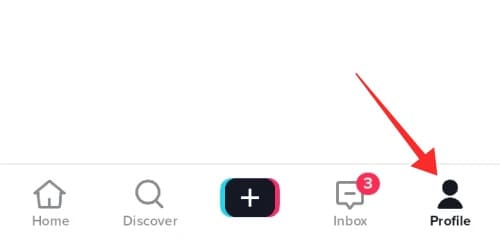
1. Open TikTok and go to your profile: Tap the profile icon at the bottom right of the screen.
2. Open the Reposts tab and find the video: Tap the two-arrows (Reposts) icon above your video grid, then scroll to the repost you want gone.
3. Tap the video to open it full screen: This brings you to the normal playback view.
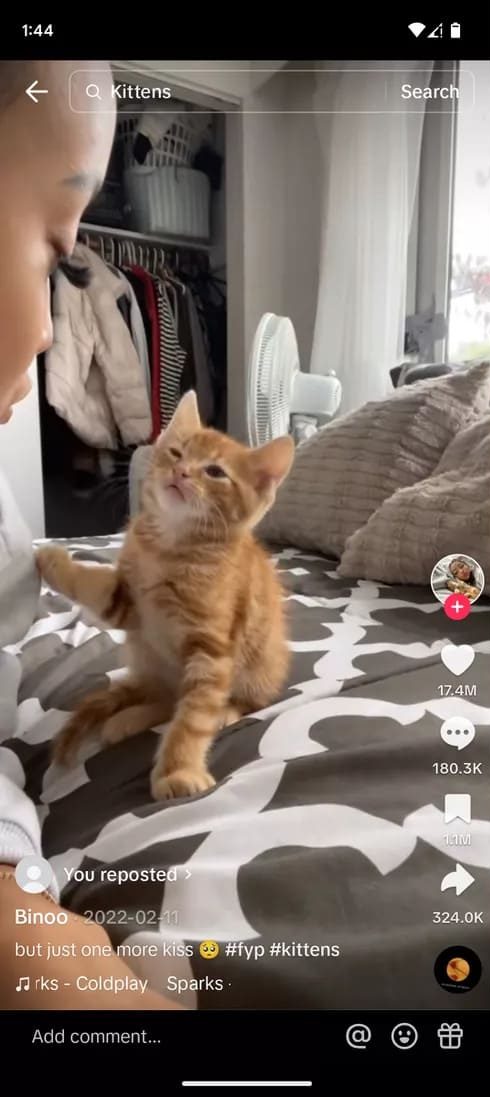
4. Tap the Share button: That’s the arrow icon on the right side of the screen, below the Like and Comment buttons. A menu of options slides up.
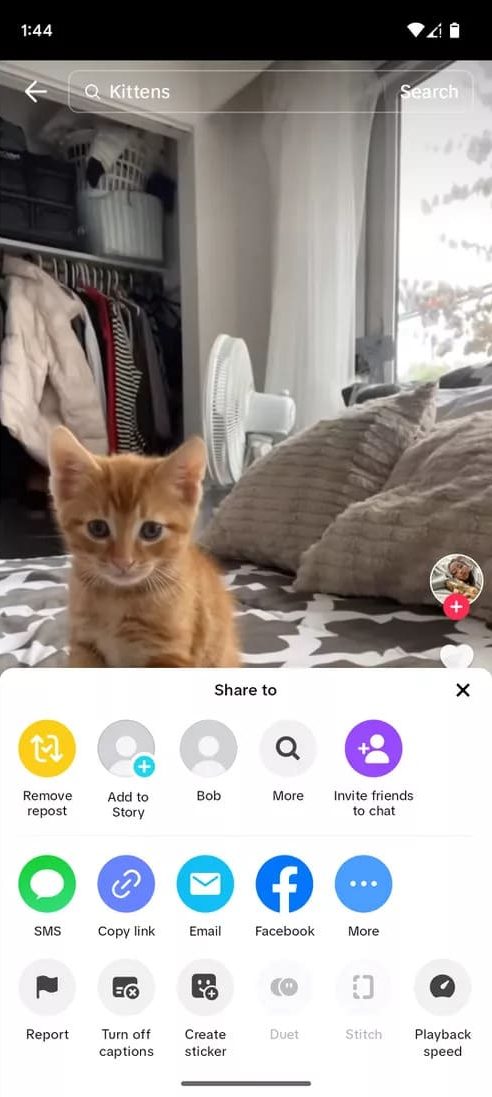
5. Tap “Remove repost”: It appears in the same spot where the yellow Repost button normally sits.
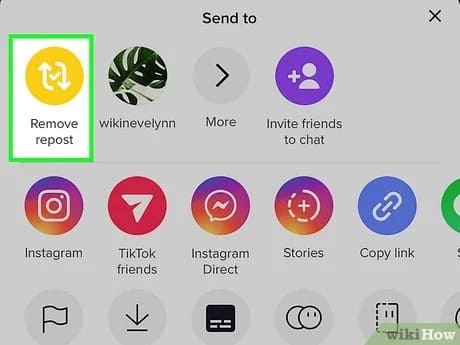
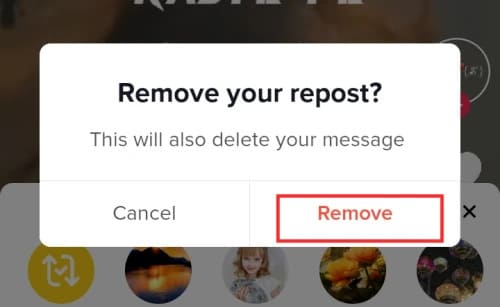
6. Done: The video disappears from your Reposts tab and stops being distributed to your followers’ For You feeds. If TikTok shows a confirmation prompt, confirm it — and that’s it.
Two Even Faster Shortcuts
- Long-press method: Press and hold anywhere on the reposted video, then tap Remove repost in the pop-up menu.
- “Reposted” label method: If you spot your own repost in a feed, tap your profile photo on the video, tap Reposted, then Remove repost.
All three methods are listed on TikTok’s official Repost support page.
What Happens After You Remove a Repost
- No one is notified. Neither the original creator nor your followers get an alert when you remove a repost.
- It vanishes from feeds. The video stops appearing in your followers’ For You feeds with your name attached, and it’s removed from your Reposts tab.
- Your comments stay. Removing a repost doesn’t delete any comments or likes you left on the video — remove those separately if needed.
- You can repost it again later. Removing is fully reversible; just tap Share → Repost on the same video.
Can You Delete All Reposts at Once?
No — as of July 2026, TikTok has no built-in bulk “remove all reposts” option. If you’ve reposted dozens of videos, you’ll need to work through the Reposts tab one video at a time. With the long-press shortcut, each removal takes only a couple of seconds.
You may see third-party “repost remover” apps and browser extensions advertising one-click bulk deletion. Treat these with caution: they typically require logging in to your TikTok account through their tool, which means handing over account access to an unknown party. That’s a real account-security risk and may breach TikTok’s terms of service. For most people, ten minutes of manual tapping is the safer trade.
When “Remove Repost” Doesn’t Appear: Troubleshooting
- The original video was deleted or made private: The repost may show as unavailable on your profile, and the usual removal option may not surface. Try the long-press method on the greyed-out tile; if that fails, report the issue via Settings and privacy → Report a problem.
- You can’t find the repost at all: Check the Reposts tab first, then Watch history, then keyword search with the Watched videos filter. Remember watch history only goes back about 180 days.
- The option is missing from the Share menu: Make sure you’re logged in to the account that made the repost, and update the app — TikTok’s menus shift between versions, and older builds may still show the removal option in different spots.
- Still stuck: Contact TikTok support through the app (Settings and privacy → Report a problem) — they can help remove content that’s glitched on your profile.
Common Pitfalls to Avoid
- Accidental reposts are easy: The Repost button sits in the Share menu right where your thumb lands, and long-pressing a video also surfaces it. If you repost by mistake, undo it immediately — the fewer followers who saw it, the better.
- Repost is not “Save”: If you wanted to bookmark a video for yourself, use the Favorites (bookmark) icon instead. Favorites are private; reposts are broadcast.
- Removing the repost doesn’t scrub the record: Followers who already saw the repost saw it. For brand and business accounts, a quick periodic sweep of the Reposts tab is better than damage control.
- Don’t hand your login to “cleaner” apps: As above — bulk-removal tools want your credentials. Not worth it.
A Note for Malaysian and Singaporean Users
TikTok is one of the most-used apps in Malaysia and Singapore, and for creators and small businesses here, the Reposts tab is effectively part of your shopfront — customers checking your profile will see what you’ve endorsed. A quick monthly review keeps it aligned with your brand. If you’re building a TikTok presence commercially, see our guides on the best time to post on TikTok in Malaysia, TikTok ads cost in Malaysia and how to make money on TikTok. And if you’re creating original content instead of reposting, an AI video generator can speed up production considerably.
Conclusion
Deleting a repost on TikTok in 2026 is quick: open the video from your Reposts tab, tap Share, tap Remove repost — or simply long-press the video. Nobody gets notified, the video leaves your followers’ feeds, and you can always repost it later. There’s no bulk-delete option yet, so an occasional sweep of your Reposts tab is the easiest way to keep your profile telling the story you want it to tell.
Steps verified July 2026 against TikTok’s official support documentation. TikTok updates its app frequently — if a menu looks different on your device, check TikTok’s Repost help page for the latest steps.
Frequently Asked Questions
Read also: Tiktok Marketing Malaysia: Discovering The Best Time to Post on TikTok Malaysia
Disclaimer: This guide is provided by KayaToday for general informational purposes. App interfaces change frequently; steps were accurate as of July 2026 but may differ slightly on your device or app version.