Adobe Firefly has grown up fast. What launched in 2023 as a simple text-to-image experiment is now Adobe’s all-in-one creative AI studio — a web and mobile app where you can generate images, video, audio, and vector art, then polish everything with the same generative tools built into Photoshop and Illustrator. In this updated guide, we walk you through exactly how to use Adobe Firefly in 2026: setting it up (it takes two minutes and no installation), writing prompts that actually work, using Generative Fill, Text Effects, and Generative Recolor, and understanding the plans, generative credits, and commercial-use rules before you spend a single ringgit or dollar.
- What is AI Art?
- What is Adobe Firefly?
- What’s New in Adobe Firefly (2026)
- Key Features of Adobe Firefly for AI Art
- Adobe Firefly Plans and Pricing (2026)
- Setting Up Adobe Firefly: Getting Started
- Learn How to Use Adobe Firefly
- Text to Image
- EXAMPLE
- A Simple Prompt Formula That Works
- Text to Image Settings
- The Output
- Generative Fill
- Generative Fill Image Settings
- Text Effects
- Generative Recolor
- Beyond Images: Video, Audio, and Boards
- Tips for Using Adobe Firefly to Create Stunning AI Art
- Top Tips for Optimizing Your Adobe Firefly Experience
- Advanced Techniques for Professional AI Art Creation
- Common Pitfalls to Avoid
- Adobe Firefly for Users in Malaysia and Singapore
- AI Art Pieces Created with Adobe Firefly
- Frequently Asked Questions
- Final Thoughts on Adobe Firefly
What is AI Art?
AI art is artwork produced or shaped by artificial intelligence models. It combines the ingenuity of human artists with the pattern-recognition power of machine learning: you describe what you want in plain language, and the model generates an image, video, or design based on everything it has learned from its training data.
AI art opens new room for experimentation. Artists use it to explore styles quickly, mock up compositions before committing hours to them, and produce visuals that would be slow or expensive to create by hand. Tools like Adobe Firefly — alongside rivals such as Midjourney, Google’s Nano Banana, and ChatGPT’s image generator — have made this accessible to anyone with a browser. If you want a broader view of the landscape, see our guide to the best AI image generators before settling on one tool.
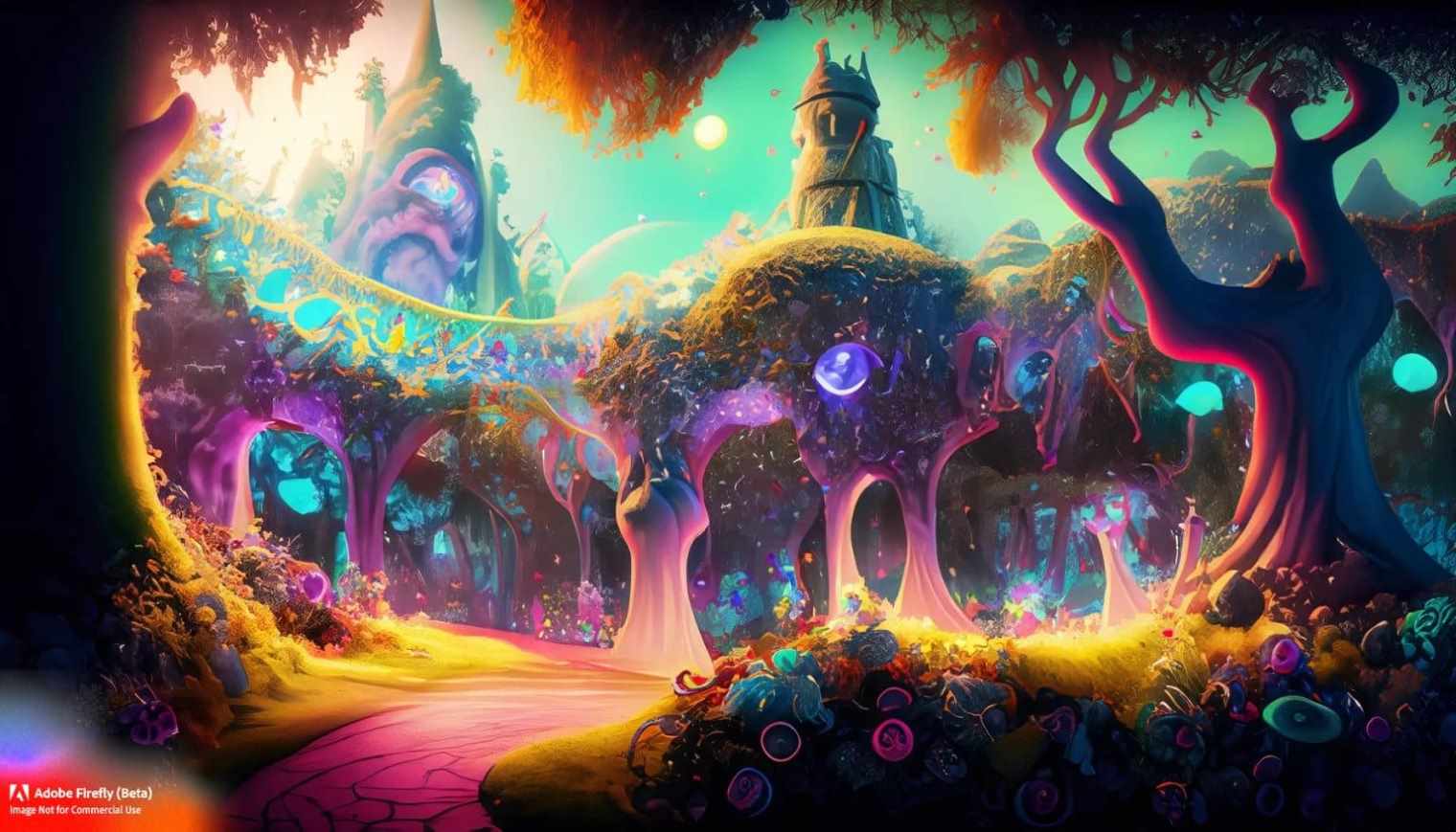
What is Adobe Firefly?
Adobe Firefly is Adobe’s family of generative AI models and, since 2025, a standalone creative AI studio you use in your browser at firefly.adobe.com or through the Firefly mobile app on iOS and Android. You don’t need to install Creative Cloud to use it — a free Adobe account is enough to start generating.
Two things set Firefly apart from other AI art tools in 2026. First, Adobe’s own Firefly models are trained on Adobe Stock, openly licensed content, and public-domain material, which is why Adobe positions them as safe for commercial work. Second, Firefly is no longer limited to Adobe’s models: the app now hosts 30+ partner models — including Google’s Gemini/Nano Banana image models and Veo video models, OpenAI’s GPT Image, Runway, Kling, Flux, ElevenLabs voice, and Luma Ray — so you can compare outputs from different engines inside one interface with one subscription.
What’s New in Adobe Firefly (2026)
If you last touched Firefly a year or two ago, here’s what has changed:
| Feature | What it does | Status (July 2026) |
|---|---|---|
| Firefly Image Model 5 | Adobe’s latest image model: native ~4MP output, much better people and hands, layered editing that splits an image into editable elements | Generally available |
| Prompt to Edit | Describe edits conversationally (“make the sky stormy, remove the car”) instead of masking manually | Available in Firefly web |
| Partner models | 30+ third-party models (Nano Banana 2, GPT Image 2, Veo 3.1, Kling, Runway Gen-4.5, Flux.2, ElevenLabs, Luma Ray) selectable in-app | Available on paid plans; some in free tier |
| Firefly Boards | Infinite canvas for mood boards, ideation, and remixing generations with your team | Unlimited on all plans |
| Generate Video & video editor | Text-to-video and image-to-video (Firefly Video Model plus Veo/Kling), plus a web video editor with AI assembly | Available; video costs premium credits |
| Generate Speech & Soundtrack | AI voiceover (incl. ElevenLabs voices), music and sound effects for your videos | Available (some in beta) |
| Firefly AI Assistant | Conversational agent that plans and runs multi-step creative workflows and learns your style | Rolling out since April 2026 |
| Custom models | Train a private Firefly model on your own art style or product | Available (beta for individuals) |
Key Features of Adobe Firefly for AI Art
Drawing from our testing, these are the features you’ll actually use most:
- Text-to-Image Generation: Type a prompt, pick a model (Firefly Image 5, Nano Banana, GPT Image, Flux and others) and get four variations in seconds. Style presets, reference images, and composition controls let you steer the result far more precisely than early Firefly ever did.
- Generative Fill and Expand: Add, remove, or replace objects in any photo, or expand an image beyond its original frame. This works in Firefly on the web and in Photoshop, and standard image edits like Generative Fill are unlimited on every paid Firefly plan.
- Video, Audio, and Vector Tools: Generate 5-second-plus video clips, AI voiceovers, soundtracks and sound effects, translate audio/video into other languages, and recolor vector artwork — all from the same app.
- Creative Cloud Integration: Firefly powers Generative Fill in Photoshop, Generative Recolor in Illustrator, text effects in Adobe Express, and Generative Extend in Premiere Pro, so anything you start in Firefly can be finished in a professional editor.
- Commercial Safety and Content Credentials: Adobe’s own models are trained on licensed and public-domain content, and outputs carry Content Credentials — tamper-evident metadata that discloses AI was used. Note that partner models (Google, OpenAI, etc.) follow their own terms, which matters if you generate for clients.
Adobe Firefly Plans and Pricing (2026)
Firefly moved to its own plan lineup, separate from classic Creative Cloud subscriptions. Every plan works on web and mobile, and all paid tiers include unlimited standard image generations and edits — the monthly generative credits are consumed by premium features such as video, audio translation, 4K partner models, and sound effects.
| Plan | Price (USD/month) | Generative credits | Best for |
|---|---|---|---|
| Firefly Free | $0 | Free daily generations (limits reset every day) | Trying Firefly, casual image generation — includes access to popular models like Nano Banana |
| Firefly Standard | $9.99 | 2,000/month | Hobbyists: unlimited standard image edits + up to 20 five-second videos/month |
| Firefly Pro | $19.99 | 4,000/month | Creators: adds Adobe Express Premium + full Photoshop on web and mobile |
| Firefly Pro Plus | $49.99 | 10,000/month | Heavy video users: up to 100 five-second videos/month, unlimited generations on select models (first-year promo) |
| Firefly Premium | $199.99 | 50,000/month | Studios and power users: unlimited Firefly Video Model access, highest video/audio limits |
At the time of writing, Adobe is running a promotion (until 26 August 2026) offering roughly 30% off the first year of Pro Plus and Premium, plus “unlimited generations” on selected image and video models for the first year. Firefly credits are also included with many Creative Cloud plans, and unused promo terms change often — check the official Firefly plans page for current offers before subscribing.
Setting Up Adobe Firefly: Getting Started
The biggest change since this guide was first written: you no longer install anything. Firefly is a web app. Here’s the 2026 setup flow:
- Go to firefly.adobe.com: Open the site in any modern browser on desktop or mobile. If you prefer an app, download Adobe Firefly from the App Store or Google Play.
- Sign in with a free Adobe account: You can create one with an email address, Google, Facebook, or Apple ID. No Creative Cloud subscription or credit card is required for the free tier.
- Pick a tool from the home screen: Generate Image, Generate Video, Generate Speech, Firefly Boards, or the editing tools (Generative Fill, Expand, Text Effects). For your first session, choose Generate Image.
- Choose a model: A model picker sits next to the prompt bar. Firefly Image 5 is the default and the safest choice for commercial work; partner models like Nano Banana or GPT Image are worth comparing for stylized or text-heavy images.
- Write a prompt and generate: Describe your image and press Generate. Firefly returns four variations. Each standard image generation on a paid plan is unlimited; on the free plan it draws from your daily allowance.
- Refine with the side panel: Adjust aspect ratio, content type (photo vs art), style presets, camera angle, lighting, and color settings, or upload a reference image to match a composition or style.
- Edit conversationally: Use Prompt to Edit to type follow-up instructions (“remove the person on the left, make it golden hour”) instead of regenerating from scratch.
- Download or send to another app: Export as JPEG/PNG, or push the result into Photoshop on the web, Adobe Express, or Firefly Boards to keep working.
Learn How to Use Adobe Firefly
Firefly’s core workflow is still text-to-image, and mastering it comes down to two skills: writing a clear prompt, and knowing which settings to adjust rather than re-rolling endlessly.
Text to Image
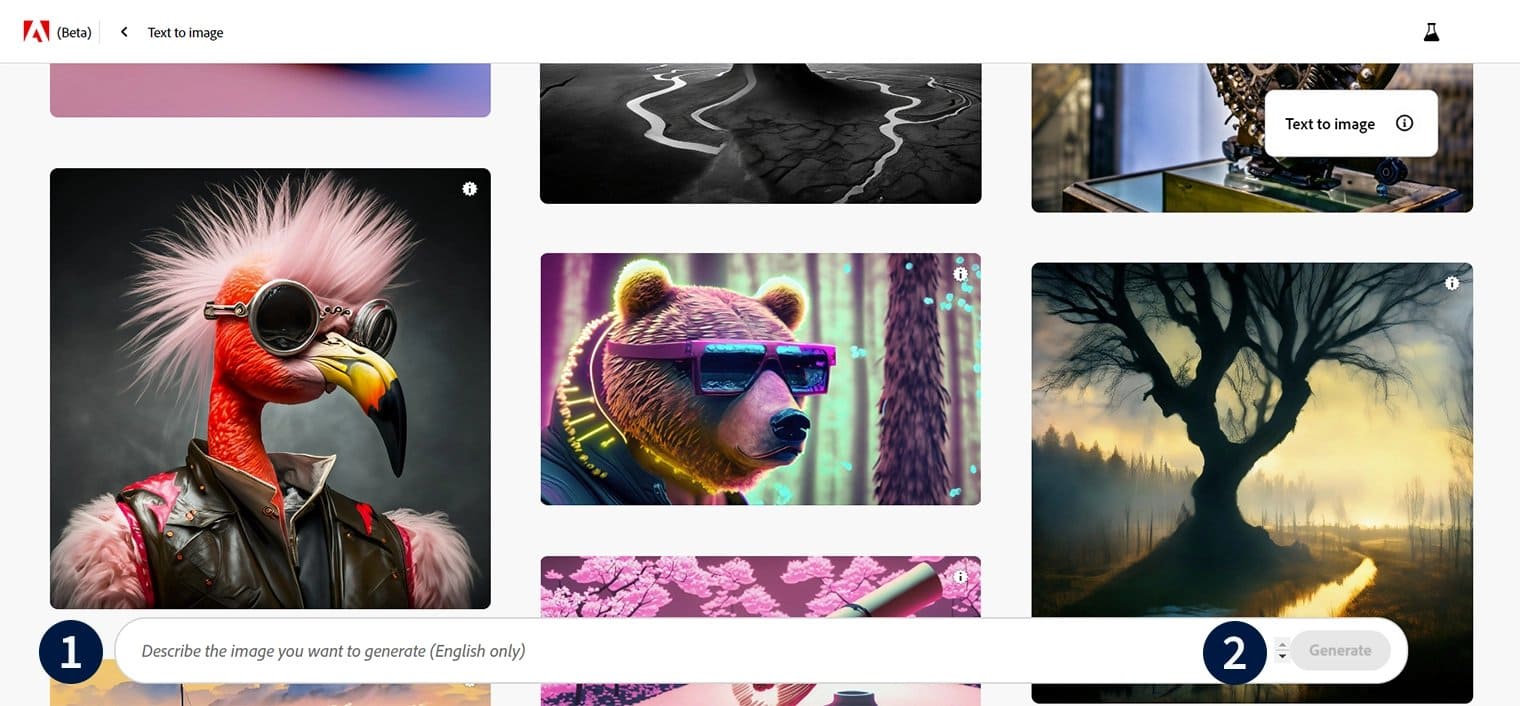
Text to Image turns a written description into four image variations. With Firefly Image Model 5, output is native ~4MP (roughly 2240×1792), so images are sharp enough for print and web use without upscaling. (Screenshots in this guide show an earlier Firefly interface; the layout has evolved, but the prompt bar, model picker, and settings panel work the same way.)
EXAMPLE
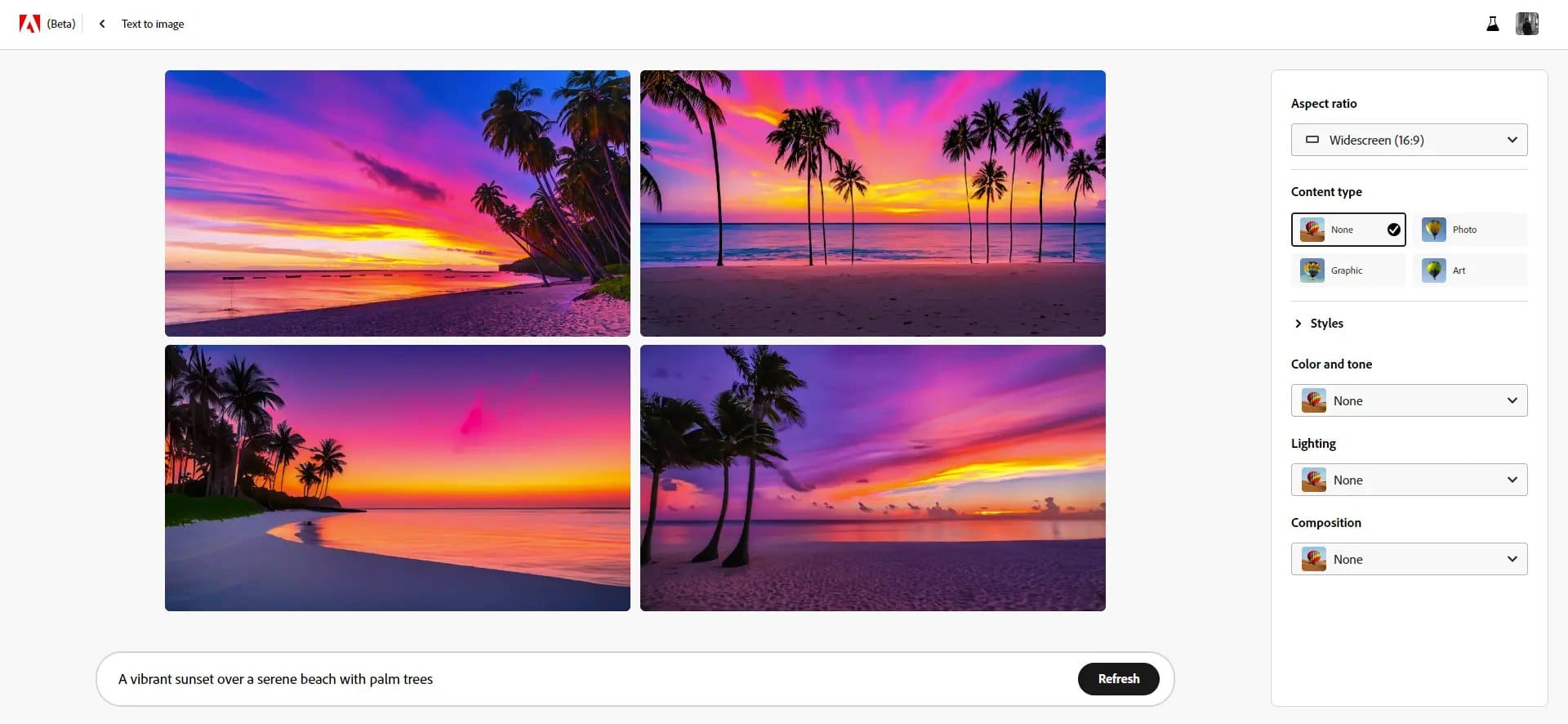
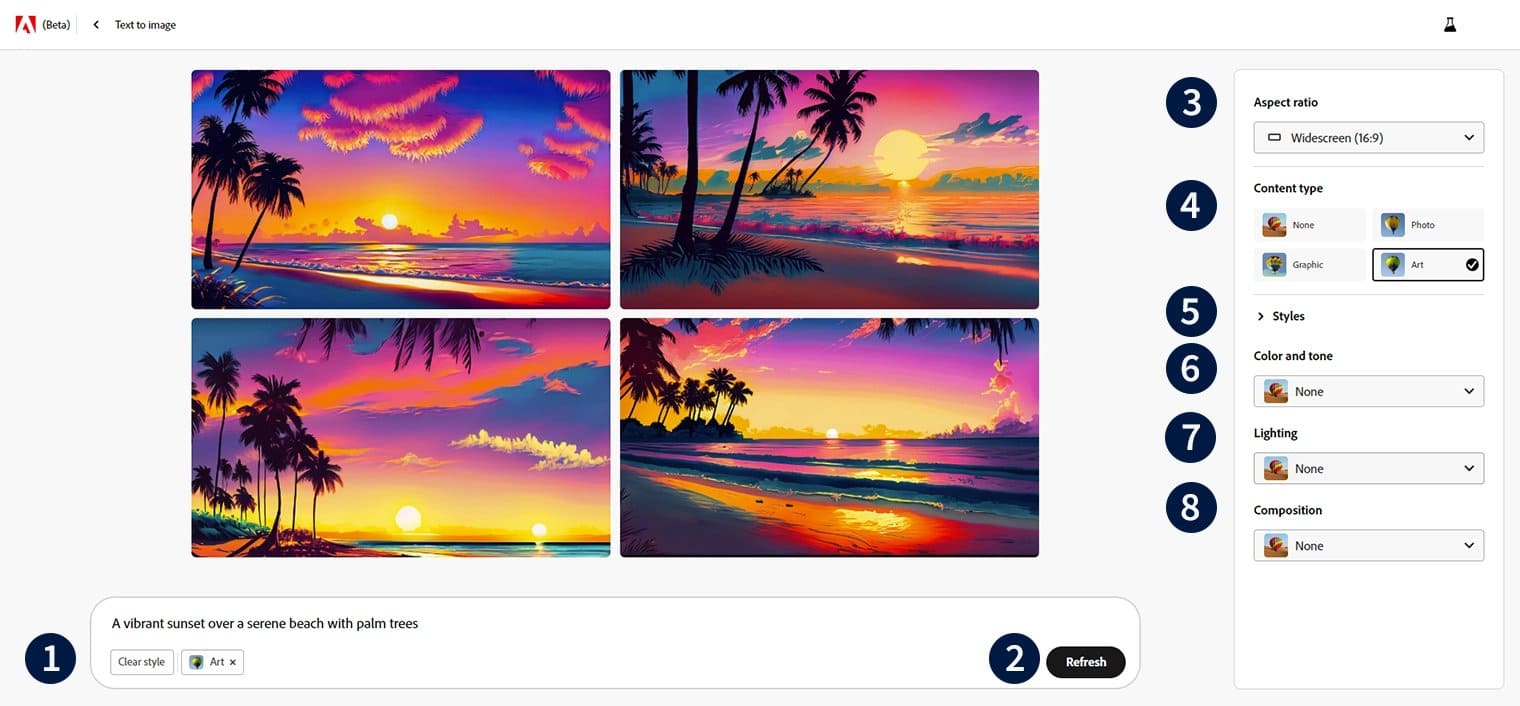
Let’s use the text prompt “A vibrant sunset over a serene beach with palm trees.” Firefly interprets the prompt and generates an image matching the description — typically a warm, realistic beach scene at dusk with palm silhouettes.
A Simple Prompt Formula That Works
After hundreds of generations, we’ve settled on a five-part structure that consistently beats vague prompts:
- Subject: what the image is of — “an elderly fisherman mending a net.”
- Setting: where and when — “on a wooden jetty in a Malaysian fishing village at dawn.”
- Style/medium: “documentary photography” / “watercolor illustration” / “3D render.”
- Lighting and mood: “soft golden light, misty, calm.”
- Camera/composition details: “shot on 35mm, shallow depth of field, rule of thirds.”
Firefly responds better to descriptive sentences than keyword soup, and unlike some rivals it has no “negative prompt” field — instead, use the settings panel or Prompt to Edit to remove unwanted elements after generating.
Text to Image Settings
- Model picker: Choose between Firefly Image 5 (commercially safe, best people rendering) and partner models. Nano Banana models excel at playful edits and consistency; GPT Image is strong at rendering readable text inside images.
- Content type: “Photo” biases toward photorealism; “Art” toward illustration and painterly output.
- Aspect ratio: Square (1:1), landscape (4:3, 16:9), portrait (3:4, 9:16) — pick to match your final placement (a TikTok cover wants 9:16; a blog header 16:9).
- Style presets and reference images: Apply visual styles (film noir, isometric, chaotic collage) or upload your own reference image; Style Match transfers its look onto your prompt.
- Camera, color, and lighting: Fine-tune with options like golden hour, studio light, wide angle, macro, or muted/vibrant color to lock the mood without rewriting your prompt.
For our beach example, we’d set: content type Photo, aspect ratio 16:9 landscape, warm vibrant color, golden-hour lighting, rule-of-thirds composition:
The Output
Each generation returns four variations. Pick the closest one and iterate — use Prompt to Edit for targeted changes, Generative Expand to widen the frame, or “Generate similar” to explore variations of a favorite. With Image Model 5’s layered editing, Firefly can also split a generated image into separate elements (person, clothing, background) that you can move or restyle independently — something no earlier version could do. When you’re happy, download the file or continue in Photoshop on the web.
Generative Fill

Generative Fill lets you add, remove, or replace parts of an image using a brush selection and a short text instruction. It started as a Photoshop beta feature in 2023; today it’s a mature tool available both in Photoshop and directly in Firefly on the web (under Edit > Generative Fill), where it counts as a standard feature — meaning unlimited use on every paid Firefly plan.
The workflow: upload or open an image, brush over the area you want to change, then either type what should appear there or leave the prompt empty to remove the selection and let Firefly reconstruct the background. Because results land on separate layers in Photoshop, edits are non-destructive — you can toggle, mask, or blend them like any other layer.
Generative Fill Image Settings
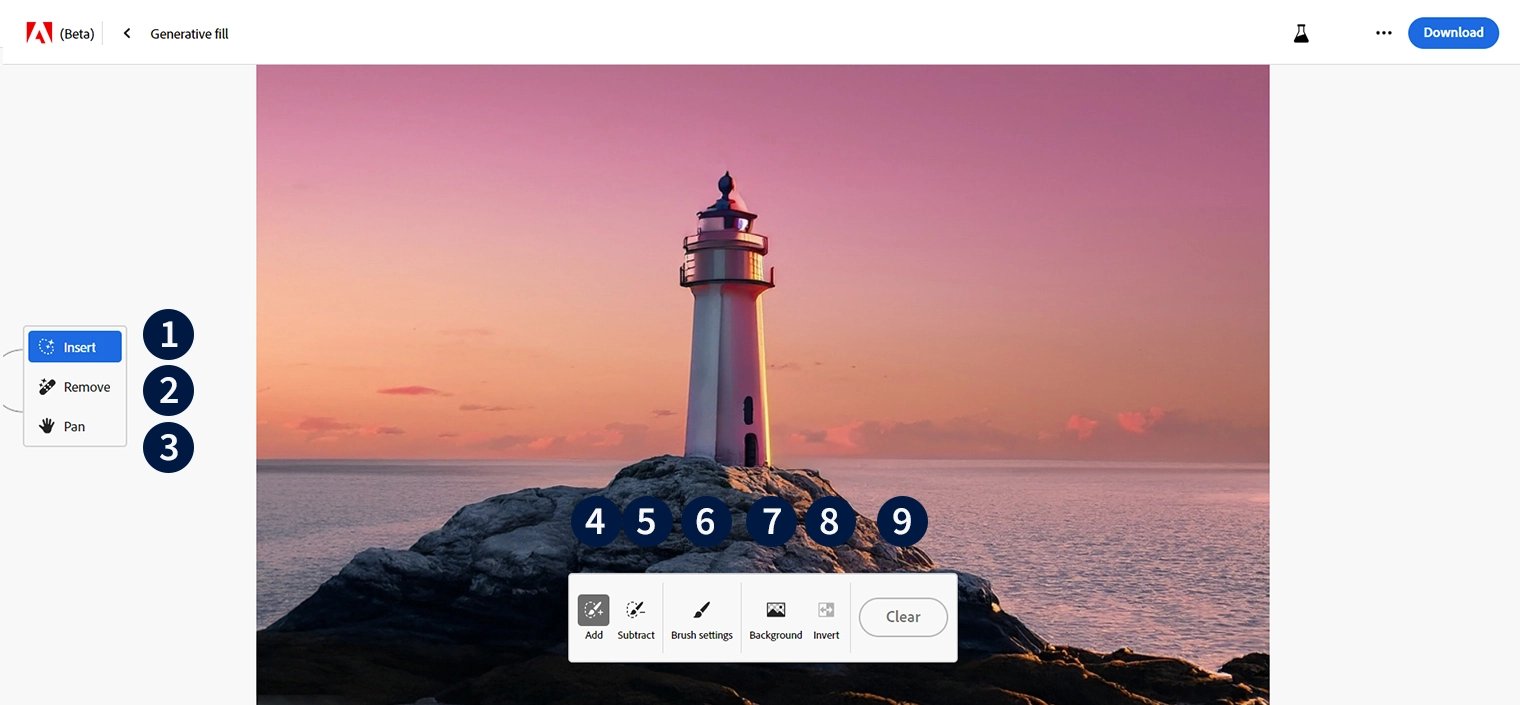
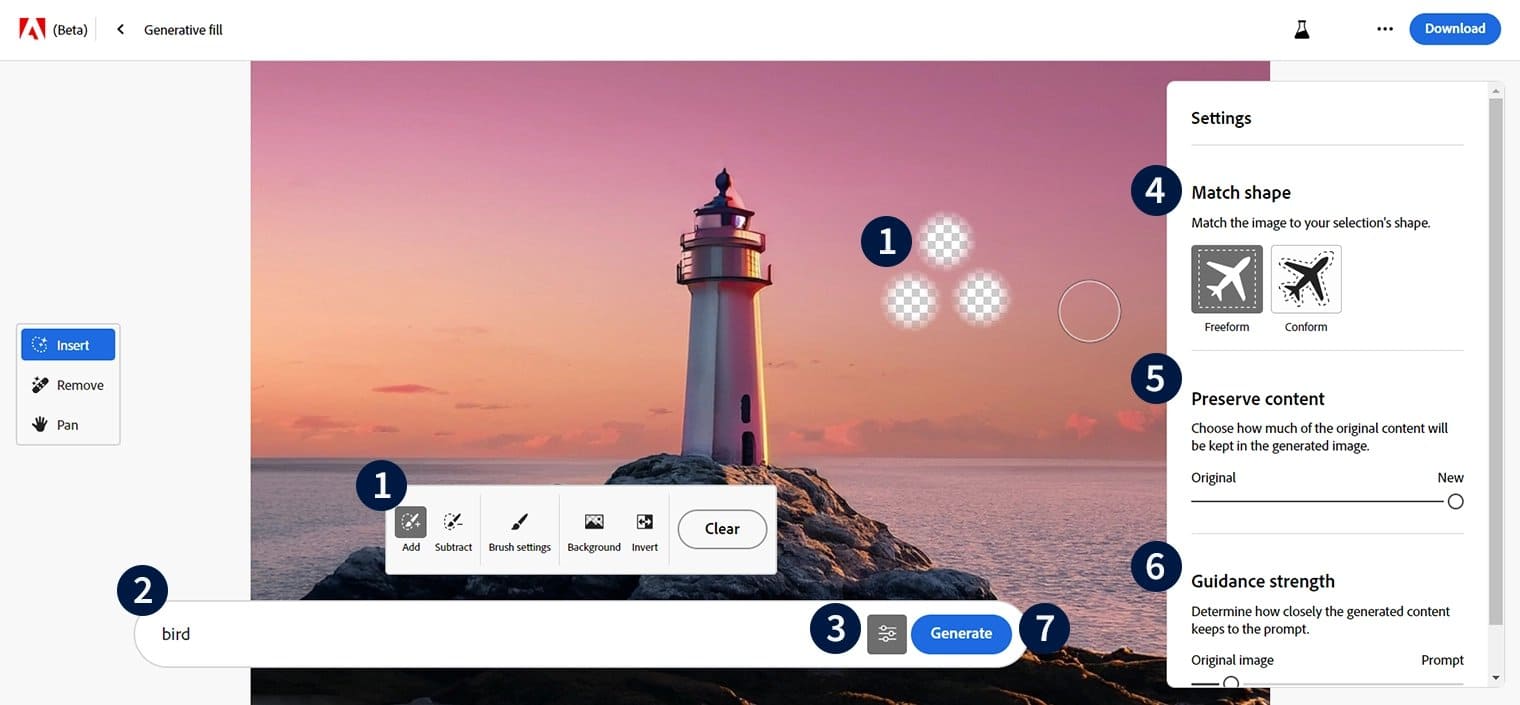
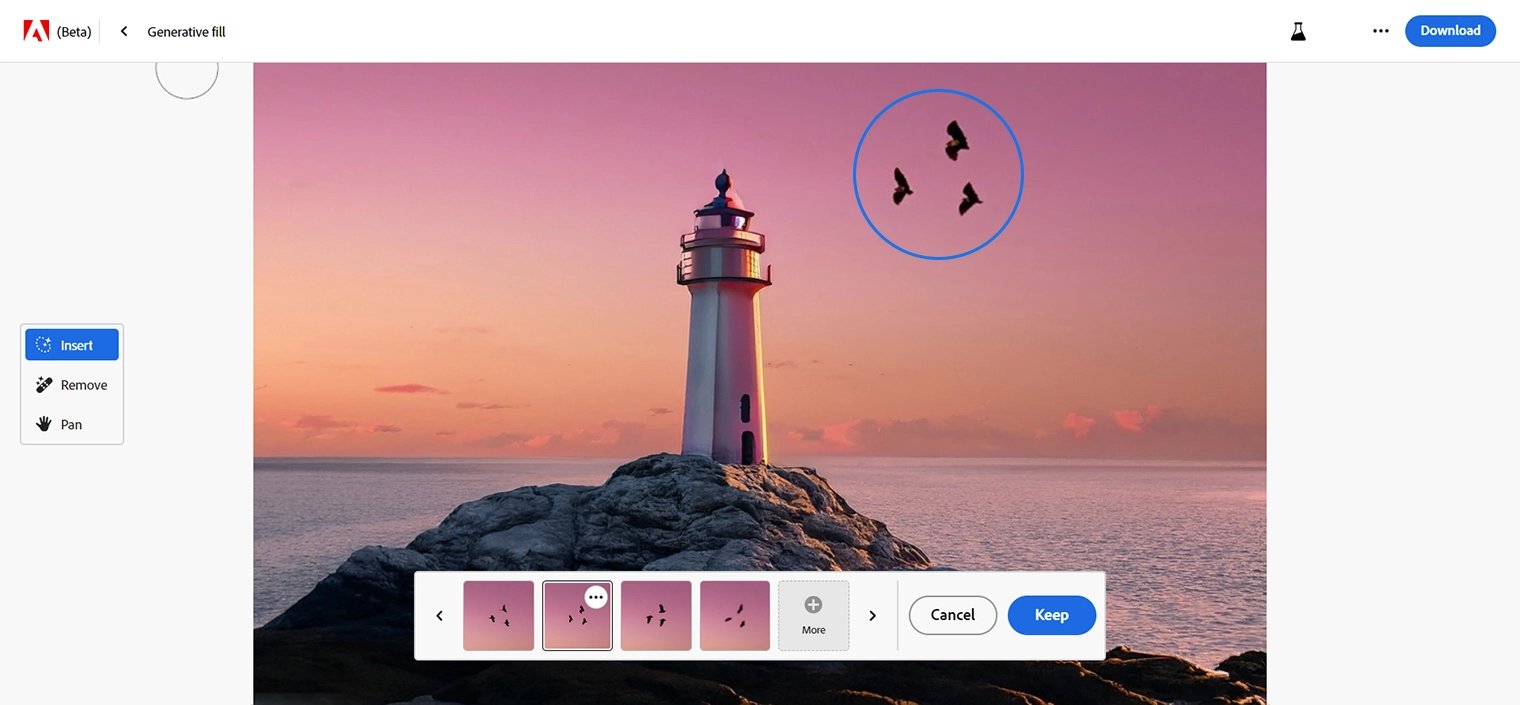
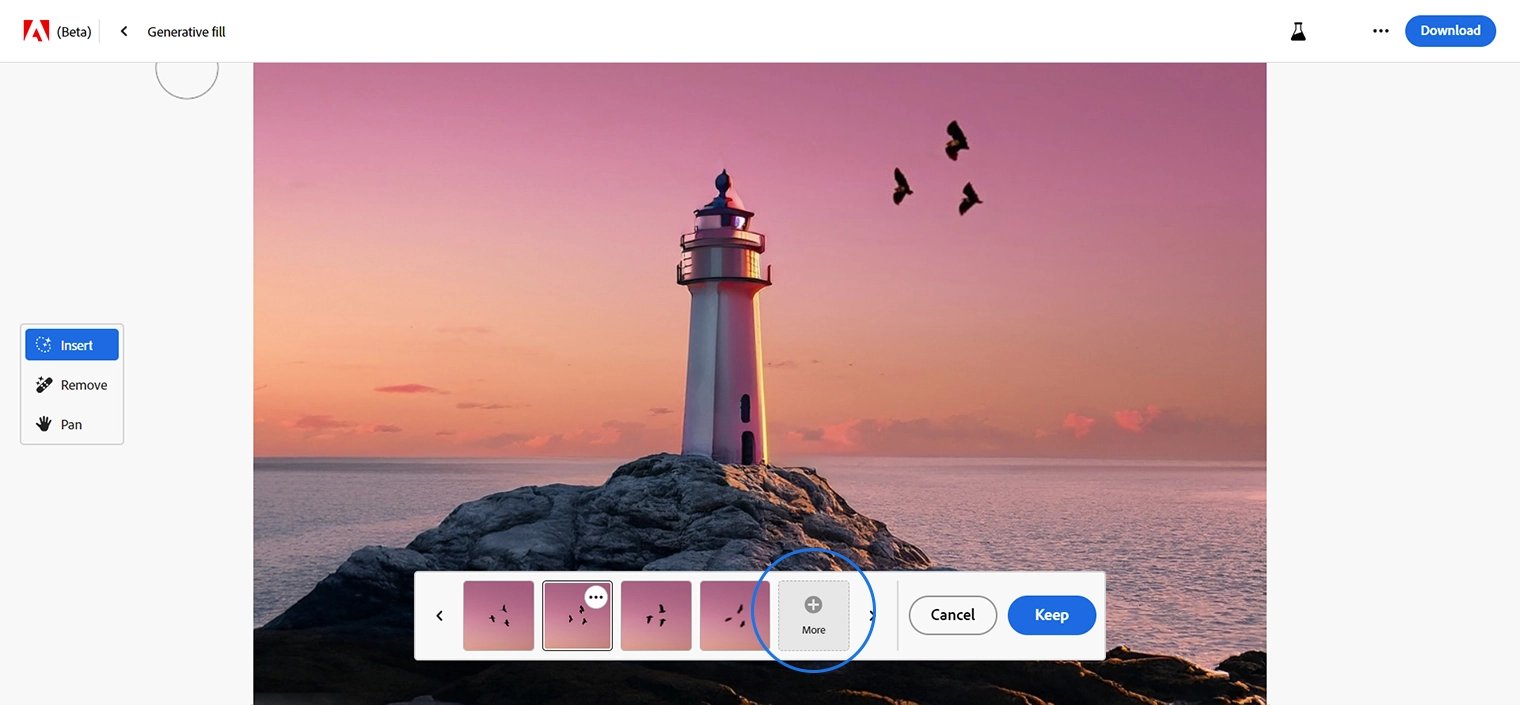
The main ways to use Generative Fill:
- Object generation: Brush an area and describe a new element — a person, product, or prop — and Firefly matches lighting and perspective automatically.
- Background replacement and extension: Select the background (one click in Photoshop) and describe a new scene, or use Generative Expand to grow the canvas in any direction.
- Content removal: Select tourists, wires, or clutter and generate with an empty prompt; Firefly fills the gap with context-appropriate detail.
- Detail and accessory edits: Add sunglasses, change clothing color, insert reflections, or blend elements from multiple photos into one composition.
Text Effects
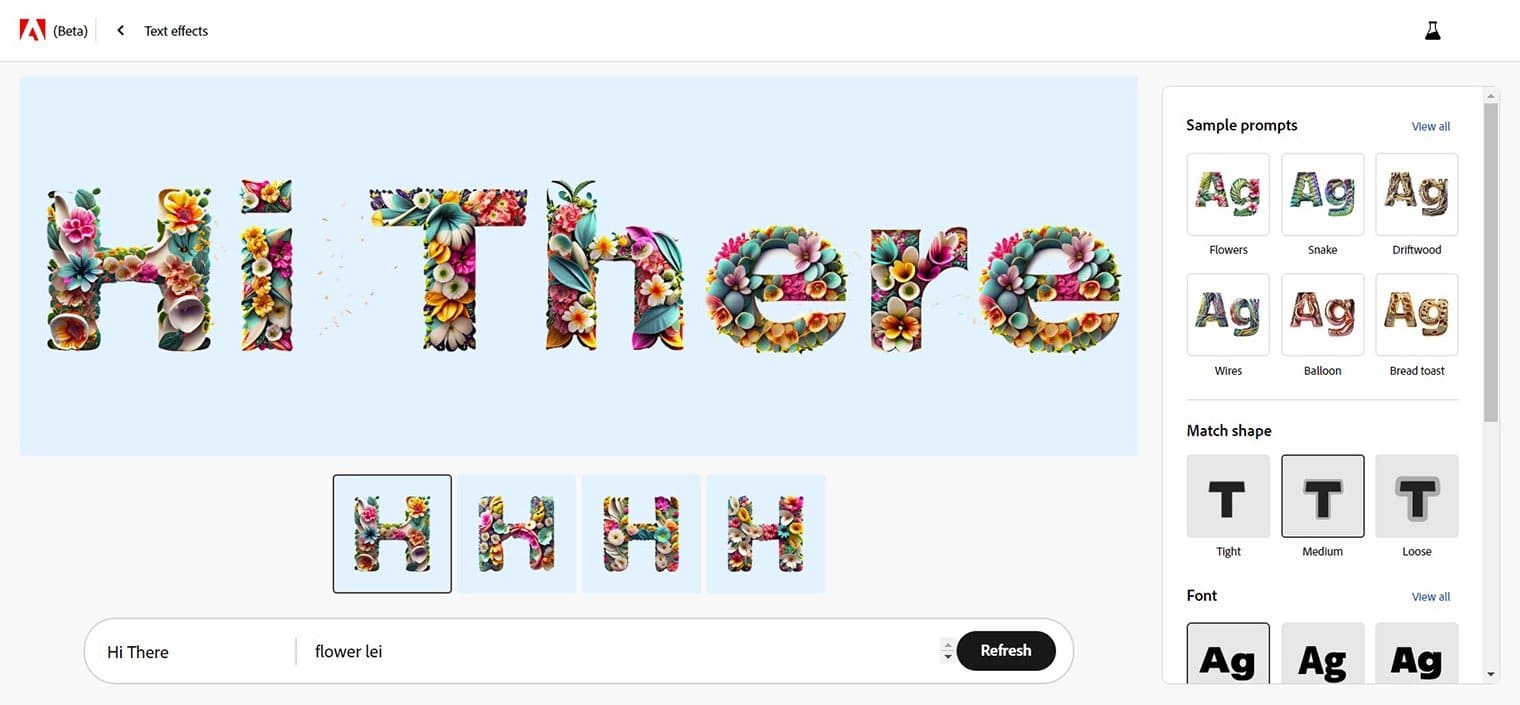
Text Effects generates decorative typography from a prompt: type a word, describe a texture or theme (“melted chocolate,” “neon tubes,” “batik pattern”), and Firefly wraps the lettering in that style. You’ll find it in Firefly on the web and inside Adobe Express, where it’s especially handy for social media graphics, posters, and thumbnails. You can control how tightly the effect hugs the letterforms and pick from hundreds of Adobe Fonts before exporting with a transparent background.
Generative Recolor
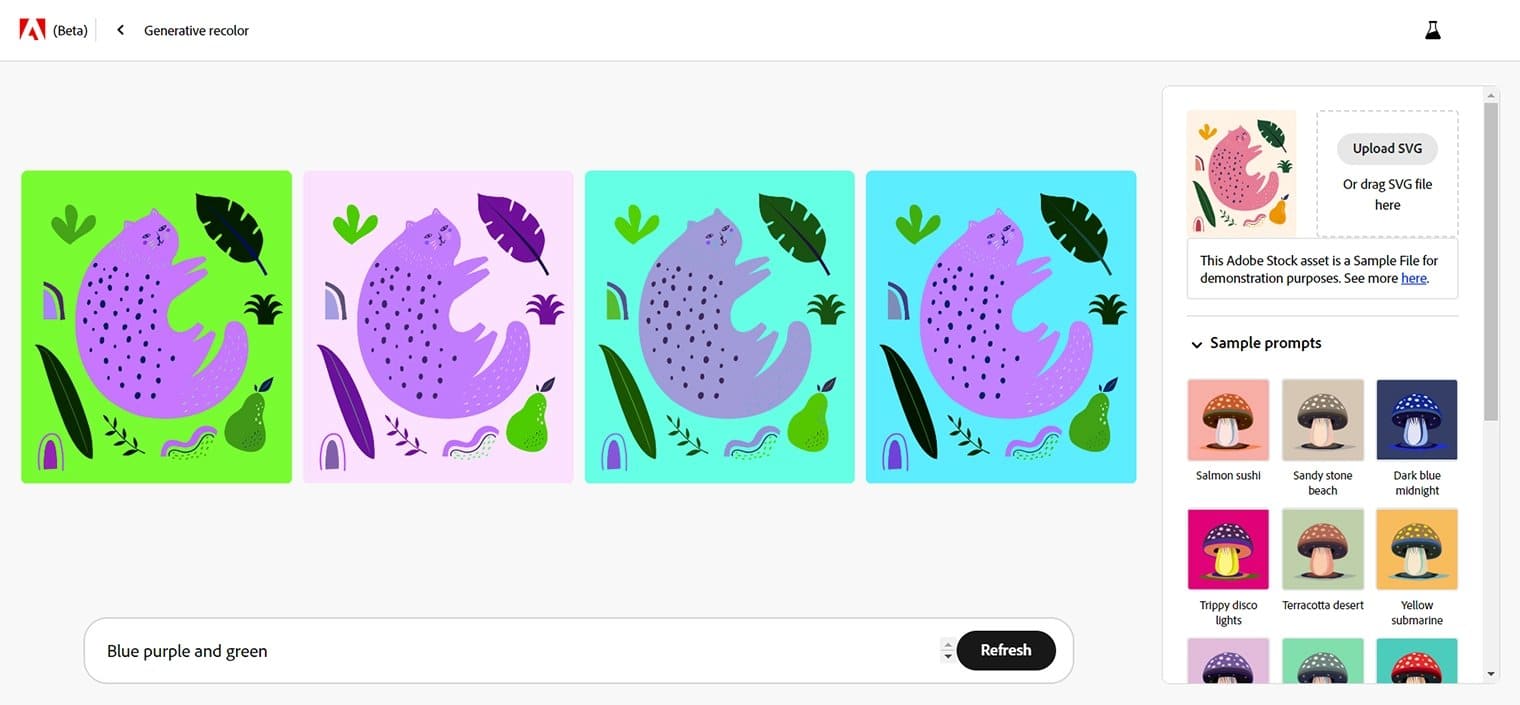
Generative Recolor — now a standard (no longer beta) feature of Adobe Illustrator — recolors vector artwork from a text prompt. Open your vector file, choose Edit > Edit Colors > Generative Recolor, and type a theme like “strawberry fields” or “faded emerald.” Illustrator returns multiple color-variation options based on your description, and you can fine-tune individual swatches afterward.
It’s a genuine time-saver for logo lockups, packaging variants, and seasonal campaign refreshes: instead of manually rebuilding palettes, you generate ten directions in a minute and refine the best one. The original artwork is never overwritten, so experimentation is risk-free.
Beyond Images: Video, Audio, and Boards
Firefly in 2026 is much more than an image generator, and if you’re paying for a plan you should use the rest of it:
- Generate Video: Text-to-video and image-to-video clips using the Firefly Video Model or partner models like Google Veo 3.1 and Kling. Video is a premium feature that consumes generative credits — plan tiers cap how many 5-second clips you get per month. If video is your main goal, compare dedicated tools in our best AI video generator guide first.
- Generate Speech and Soundtrack: AI voiceovers (including ElevenLabs voices), background music, and sound effects — useful for turning generated clips into finished shorts without leaving the browser.
- Firefly Boards: An infinite canvas for mood boards and ideation. Drop in generations, remix them, and collaborate — unlimited on every plan, including free.
- Firefly AI Assistant: Adobe’s conversational agent (rolling out since April 2026) that executes multi-step workflows — “create five thumbnail options in my brand colors” — and learns your aesthetic over time.
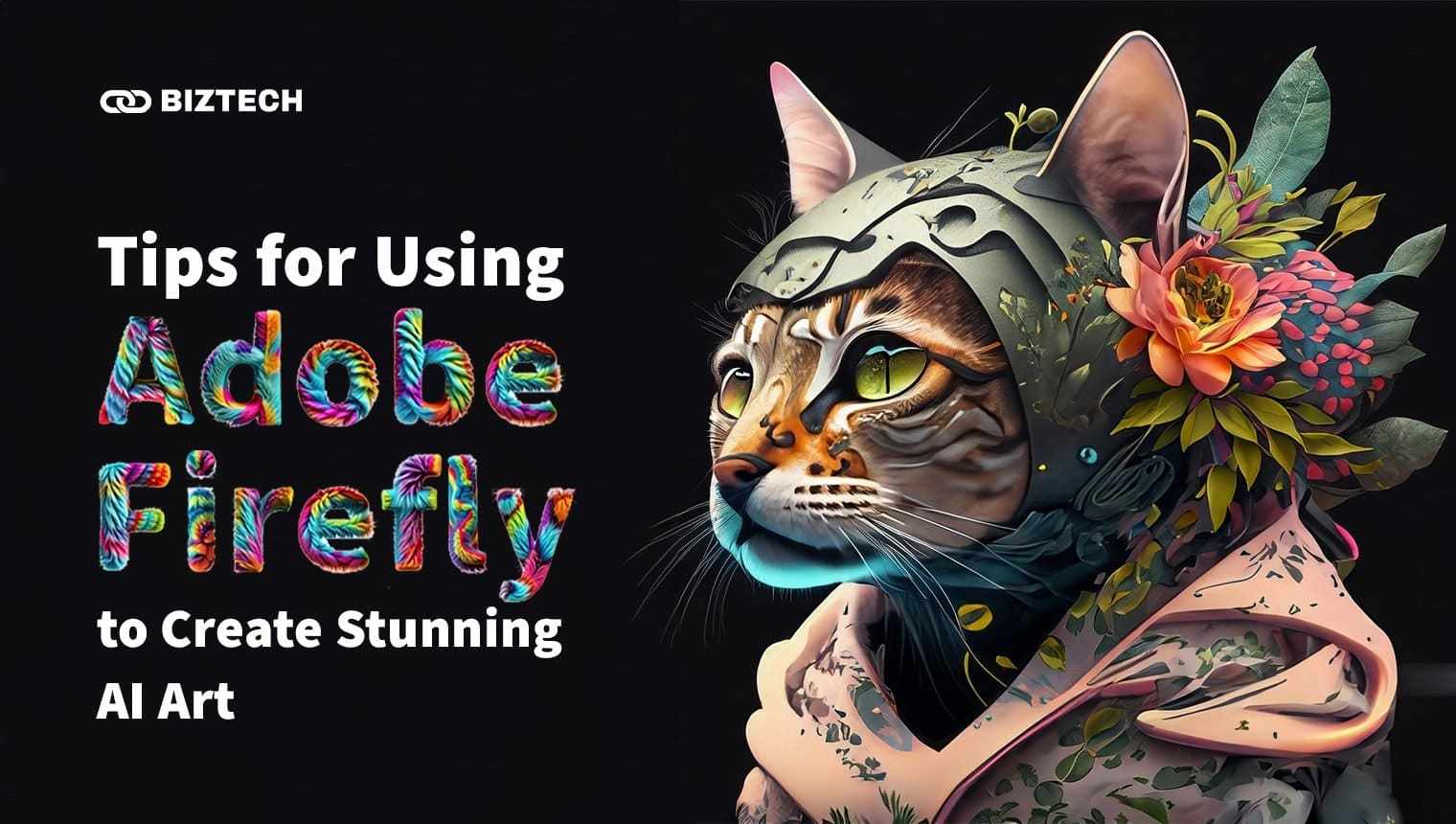
Tips for Using Adobe Firefly to Create Stunning AI Art
Top Tips for Optimizing Your Adobe Firefly Experience
- Start free, upgrade only when you hit limits: The free tier’s daily generations are enough to learn prompting. Upgrade to Standard or Pro once you need unlimited image edits or video credits.
- Match the model to the job: Use Firefly Image 5 for client/commercial work and realistic people; try partner models for stylized art, in-image text, or when you want a second opinion on the same prompt.
- Iterate with edits, not re-rolls: Prompt to Edit, Generative Fill, and Expand preserve what’s already good in an image. Regenerating from scratch wastes daily allowance and throws away happy accidents.
- Use reference images for consistency: Style Match and composition references are the fastest way to keep a series of images visually coherent — crucial for branding and content series.
- Mind the training opt-out: Adobe lets you opt out of having your content analyzed for product improvement in your account privacy settings — worth doing for client work.
- Watch the What’s New page: Firefly ships features monthly. The official What’s New page is the quickest way to catch new models and tools.
Advanced Techniques for Professional AI Art Creation
- Exploit layered editing: Let Image Model 5 deconstruct a generation into layers, then restyle or reposition individual elements — faster than masking in Photoshop for quick comps.
- Chain Firefly with Photoshop: Generate the base in Firefly, then finish with Photoshop’s Generative Fill, upscaling, and color grading. The round trip is one click on Pro plans (which include Photoshop on web).
- Build prompt libraries: Save prompts that worked (Firefly keeps generation history) and template them: swap the subject while keeping style/lighting/camera blocks constant.
- Train a custom model for a signature style: If you produce lots of on-brand imagery, a custom Firefly model trained on your own artwork keeps every generation consistent — a feature previously limited to enterprises, now in beta for individuals.
- Study other tools’ strengths: Knowing how Midjourney handles style or how Nano Banana handles edits makes you a better prompter in Firefly too — the underlying craft transfers. The same goes for niche styles like Ghibli-style AI art or AI selfie generators.
Common Pitfalls to Avoid
- Burning credits on premium features unknowingly: Standard image generation is unlimited on paid plans, but video, audio translation, sound effects, and some 4K partner-model generations consume credits. Check the credit cost shown in-app before batch-generating.
- Assuming every model is commercially safe: Adobe’s commercial-safety claim applies to Firefly models. Partner models (Google, OpenAI, Kling, etc.) come with their own licensing terms — read them before using outputs in paid client work.
- Publishing AI people without checking hands, teeth, and text: Image Model 5 is dramatically better at anatomy, but errors still slip through. Zoom to 100% before publishing.
- Ignoring Content Credentials: Firefly attaches AI-disclosure metadata to outputs. That’s a feature, not a bug — but be aware platforms and clients can see that an image is AI-generated.
- Using AI art where authenticity matters: Product photos of real items, testimonials, and editorial images of real events should stay real. Misrepresenting AI images can breach platform rules and consumer-protection law.
Adobe Firefly for Users in Malaysia and Singapore
Firefly is fully available in Malaysia and Singapore on web and mobile, with the free tier working the same as everywhere else. A few local notes:
- Billing and tax: Adobe bills in local currency in both countries, and prices attract Malaysia’s 8% service tax on digital services and Singapore’s 9% GST. The USD prices above are indicative — check the checkout price at adobe.com for your region, and watch for the frequent first-year promotions.
- Student discounts: Adobe’s education pricing (via Creative Cloud) remains one of the cheapest ways for students to get Firefly credits together with Photoshop and Illustrator.
- Local use cases: We see Firefly used most for Shopee/Lazada product-listing backgrounds, kopitiam-to-café rebrand mockups, Raya/CNY/Deepavali campaign visuals (Text Effects handles festive typography well), and TikTok/Reels covers sized 9:16.
- Language: Prompts work best in English, but Firefly’s interface supports multiple languages and audio/video translation covers Bahasa and regional languages for video workflows.
AI Art Pieces Created with Adobe Firefly
AI art produced with Firefly spans photorealistic portraits, product mockups, fantasy illustration, generative-fill composites, decorative typography, and recolored vector systems. Adobe showcases community work inside the Firefly app and on Behance, and Firefly Boards makes it easy to study — and remix — how other creators structure their prompts and styles. The combination of Image Model 5’s realism and 30+ partner models means the stylistic range in 2026 is far wider than the tool that launched in 2023.
Read also: AI-Powered Creativity: How Artificial Intelligence is Revolutionizing Art and Design
Frequently Asked Questions
Final Thoughts on Adobe Firefly
Adobe Firefly has quietly become one of the most complete creative AI platforms available: commercially safe image generation, conversational editing, video and audio tools, an ideation canvas, and a marketplace of the industry’s best partner models — all behind one login, with a genuinely useful free tier. For anyone already using Photoshop, Illustrator, or Express, it’s the obvious first AI tool to learn; for everyone else, it’s one of the friendliest. Start free at firefly.adobe.com, learn the prompt formula above, and upgrade only when your ambitions outgrow the daily limits. If writing is part of your workflow too, pair it with one of the best AI text generators to cover both halves of content creation.
Pricing, plan limits, and feature availability verified July 2026 from Adobe’s official pages; Adobe changes promotions frequently, so confirm current pricing with Adobe before subscribing.
Disclaimer: This article is for general information only and reflects KayaToday’s independent testing and research. KayaToday is not affiliated with Adobe. Features, prices, and terms may change without notice — always verify with the provider.