Many people use the words hardware and software as if they mean the same thing. They don’t—and the moment something goes wrong with a phone, laptop or router, knowing the difference is what tells you whether you need a repair, a reinstall, or simply a software update.
- What is Hardware?
- What is Software?
- Where Does Firmware Fit In?
- Hardware vs Software: Side-by-Side Comparison
- How Hardware and Software Work Together
- Is It a Hardware or Software Problem? A Quick Framework
- Common Misconceptions to Avoid
- Hardware vs Software Costs in Malaysia & Singapore
- Conclusion
- Frequently Asked Questions (FAQs)
The good news: the core idea is simple. Hardware is the physical part you can hold; software is the set of instructions that tells that hardware what to do. Everything else is detail built on top of that one distinction.
In this guide we’ll explain what hardware and software are, where firmware fits between them, how they work together, and—most usefully—how to tell whether a problem is a hardware or a software issue before you spend money fixing it. By the end, the difference between hardware and software will be obvious.
[su_box title=”Key Takeaways” box_color=”#77001d” title_color=”#ffffff” radius=”10″]
- Hardware is the physical parts of a device you can touch—CPU, RAM, keyboard, monitor, storage.
- Software is the programs and instructions that run on hardware—operating systems, apps, and games.
- Hardware is tangible; software is intangible and exists as code and data.
- Each needs the other: hardware without software is inert, and software without hardware has nothing to run on.
- Firmware is a third layer—permanent low-level code stored on a chip that helps hardware boot and run.
- Hardware upgrades are physical (more RAM, a faster SSD); software upgrades are downloads and patches.
- Hardware is usually a one-time purchase; software is increasingly sold as a subscription.
- If a problem appears in only one app it’s likely software; if it happens system-wide or gets physically hot or noisy, suspect hardware.
[/su_box]
What is Hardware?
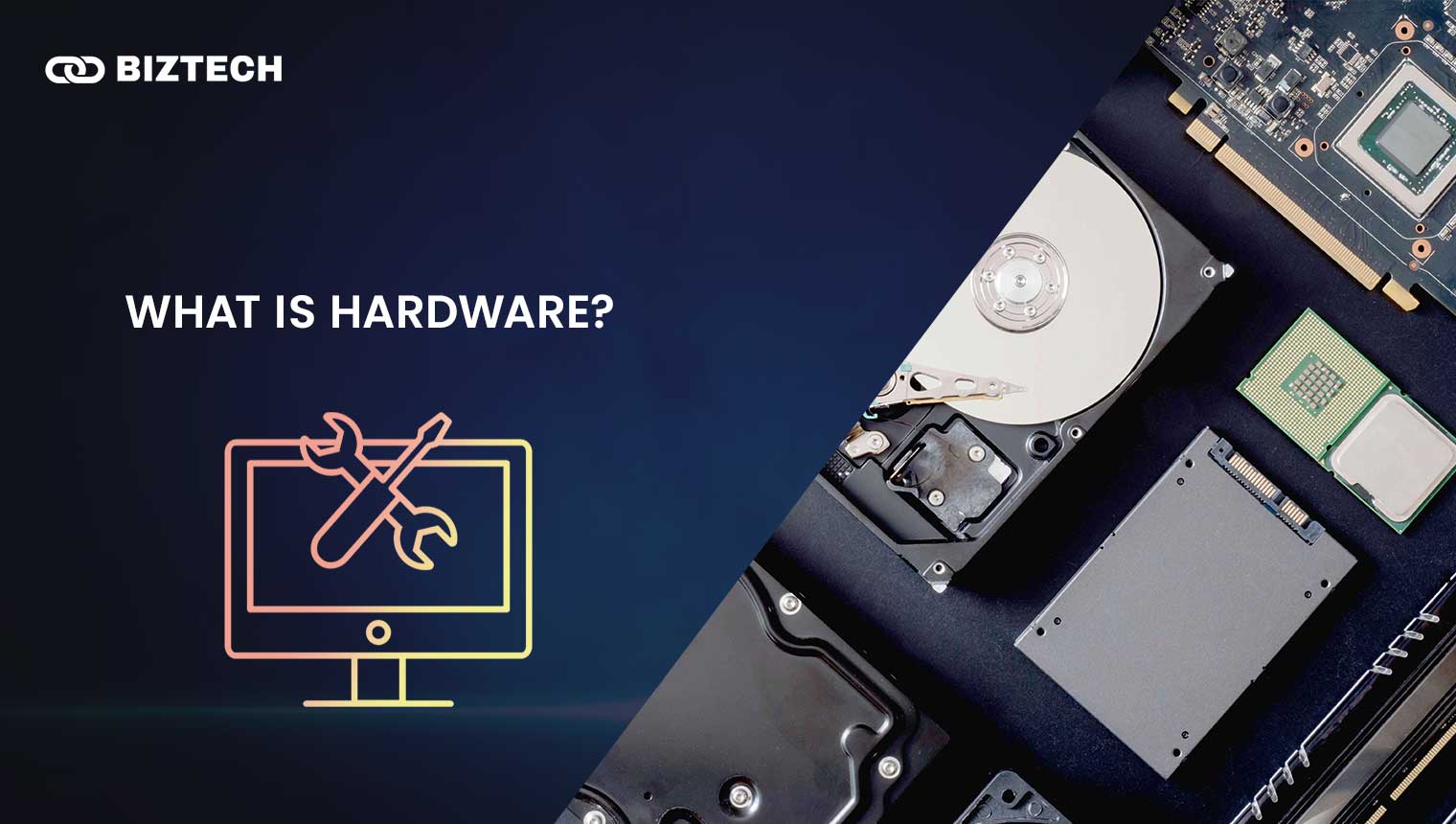
Hardware is everything you can physically touch on a computer or any digital device—the monitor, keyboard, mouse, and the components hidden inside the case.
Key internal parts include the CPU (Central Processing Unit), the “brain” that does the calculations; RAM (Random Access Memory), the short-term memory that lets your device juggle several tasks at once; and storage such as an SSD or hard drive, where your files and programs live permanently. Modern machines often add a GPU (Graphics Processing Unit) for visuals and, increasingly, an NPU (Neural Processing Unit)—a chip built specifically to run on-device AI tasks.
Think of hardware as the body of the computer. It gives the device a structure and the physical ability to type, click, display images, and play sound. Without it, there would be nowhere for data and programs to live or run—rather like an engine with no car around it.
Computer hardware falls into four main categories:
- Input devices let you give commands to the computer—keyboards, mice, scanners, microphones, and touchscreens.
- Output devices present results back to you—monitors, printers, and speakers.
- Storage devices hold your data—hard drives, solid-state drives (SSDs), and memory cards.
- Processing devices carry out the work—the CPU, GPU, and now the NPU.
These components work together to keep the computer running smoothly. A quick 2026 example: the “AI PC” wave is fundamentally a hardware story—Intel, AMD, Qualcomm and Apple now ship laptops with NPUs rated at 40+ TOPS (trillion operations per second), and some exceed 70–80 TOPS, so AI features can run locally instead of in the cloud. (See Microsoft’s Copilot+ PC NPU documentation and this overview of the neural processing unit.)
What is Software?
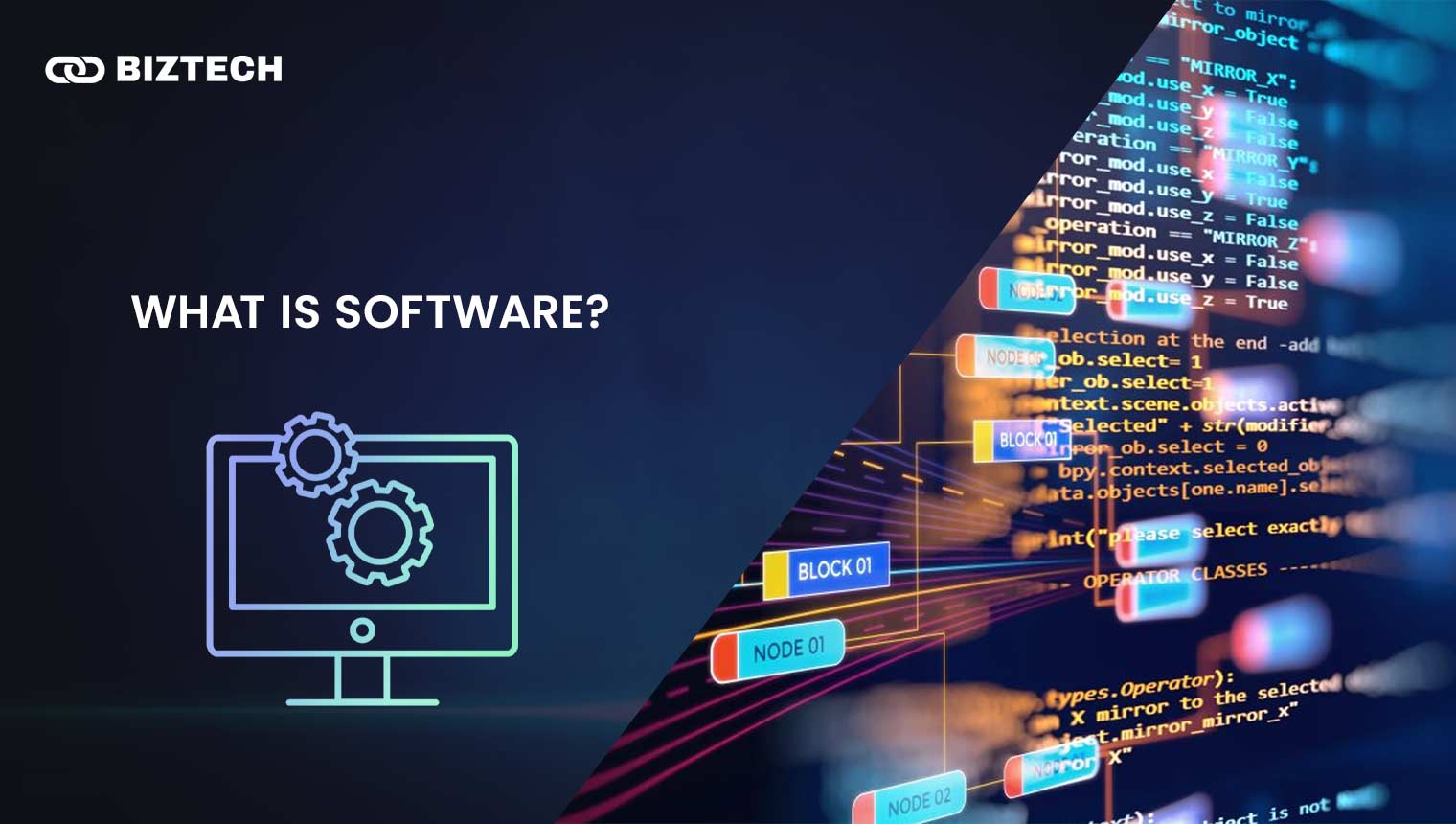
Software is the set of instructions and data that tells the hardware what to do. While hardware is the physical part you can touch, software is the intangible code that brings it to life. Open a web browser, a game, or a coding tool, and that’s software in action—telling the hardware how to display images, play sounds, and run tasks. Without software, hardware would simply sit there, unable to do anything useful.
Software generally comes in three layers:
System software is the foundation—your operating system (Windows, macOS, Android, iOS, or Linux). It manages the hardware and gives other programs a stable platform to run on.
Application software is what you actively use to get things done: word processors, photo editors, browsers, screen recorders, and games. Many apps today are delivered as cloud-based subscriptions (SaaS) rather than one-off installs.
Utility and driver software works quietly in the background—antivirus tools, backup utilities, and the drivers that let your operating system talk to specific hardware like a printer or graphics card.
In short, software makes hardware come alive. You interact with it on your computer, phone, or tablet—and choosing or deploying the right software is a discipline in itself, which is why businesses treat software implementation as a structured project.
Where Does Firmware Fit In?
Here’s the part most “hardware vs software” explanations skip: there’s a third layer sitting between the two. Firmware is special, low-level code permanently stored on a chip inside a piece of hardware. It’s sometimes called “software for hardware” because it tells a device how to start up, how its parts should behave, and how to talk to other devices before any full operating system loads.
Your router, smart TV, SSD, and even your laptop’s BIOS/UEFI all run firmware. The difference is permanence and purpose: ordinary software is easy to install, change, and delete, while firmware is built into the device and updated only occasionally (a “firmware update”). For a deeper look at that distinction, see our guide to firmware vs software, and IBM’s primer on firmware vs software.
A simple way to picture the three layers in a smartphone: the hardware (chip, battery, screen) provides the physical capability; the firmware wakes that hardware and loads the bootloader; then the software (the OS and your apps) runs on top and is what you actually interact with.
Hardware vs Software: Side-by-Side Comparison
| Aspect | Hardware | Software |
| Definition | The physical parts of a device you can touch. | Programs and instructions that tell hardware what to do. |
| Nature | Tangible—you can see and hold it. | Intangible—exists as code and data. |
| Purpose | Performs physical tasks: processing, input, output, storage. | Provides the instructions hardware executes. |
| Examples | CPU, RAM, GPU, NPU, keyboard, monitor, SSD. | Windows, macOS, browsers, apps, games, drivers. |
| Created by | Manufactured in factories from physical materials. | Written by developers using programming languages. |
| Dependency | Needs software to do anything useful. | Needs hardware to run on. |
| Upgrade | Physical—add RAM, swap in a faster SSD or GPU. | Digital—download updates or a new version. |
| Cost model | Usually a one-time purchase. | One-time licence or, increasingly, a subscription. |
| Failure & repair | Wears out, overheats, or breaks; needs physical repair or replacement. | Crashes, bugs, or corruption; fixed by patching or reinstalling. |
| Main threats | Physical damage, heat, dust, age. | Bugs, malware, viruses, compatibility issues. |
| Portability | Fixed to the device; moving it means moving the object. | Easily copied, downloaded, or moved between machines. |
The headline: hardware is the body, software is the instructions. Hardware needs software to know what to do, and software needs hardware to run on. Neither is useful alone.
How Hardware and Software Work Together
Every action on your device is a quiet collaboration between the two. Press a key (hardware), and the operating system (software) registers the input, decides what to do, and tells the screen (hardware) what to display. Save a photo, and the app (software) instructs the SSD (hardware) to write the data.
A worked example—editing a video on a laptop:
- You launch the editor (application software).
- The operating system (system software) allocates memory and processing time.
- The CPU and GPU (hardware) do the heavy rendering, pulling footage from the SSD (hardware).
- Drivers (software) translate the app’s requests into instructions the GPU understands.
- The finished video plays back on your monitor (hardware).
If any layer is weak—too little RAM, an outdated driver, or a buggy app—the whole experience suffers. That’s also why a tool like CAD or 3D software can feel sluggish on one machine and smooth on another: the software is identical, but the hardware underneath it isn’t.
Is It a Hardware or Software Problem? A Quick Framework
When a device misbehaves, this is the single most valuable thing to figure out—because it decides whether you reinstall, repair, or replace. Work through these checks:
- Is it one app or the whole system? Trouble in a single program usually points to software. Problems across every app point toward hardware (or the operating system).
- Does it boot into Safe Mode? Safe Mode loads only essential drivers. If the device runs fine there, the cause is probably software—a rogue app, driver, or malware.
- Are there physical signs? Overheating, fan noise, clicking drives, flickering screens, or no power at all strongly suggest hardware.
- Did it start after a change? A new app, update, or setting that lines up with the problem points to software. Slow decline over years, or a drop after a knock or spill, points to hardware.
- Run the built-in diagnostics. Tools like Windows Memory Diagnostic (for RAM) and your drive’s SMART health check can confirm a hardware fault.
Rule of thumb: if it’s software, you can usually fix it for free with an update, reinstall, or reset. If it’s hardware, you’re looking at a repair or a new part. When you need to log in from another machine while you sort it out, remote desktop software can keep you working.
Common Misconceptions to Avoid
- “Apps are stored, so storage is software.” No—the SSD is hardware; the app saved on it is software. The container and the contents are different things.
- “Drivers are part of the hardware.” Drivers are software that lets the OS communicate with a piece of hardware. The device and its driver are separate.
- “Firmware is just software.” Firmware is a special, embedded layer that sits closer to the hardware and is updated far less often than ordinary apps.
- “More software speed always means buying new hardware.” Often a slow machine just needs a cleanup, fewer startup apps, or a reinstall—software fixes that cost nothing.
Hardware vs Software Costs in Malaysia & Singapore
The money side matters too. Hardware is typically a one-time purchase—you buy a laptop or phone and own it—while software has shifted heavily toward subscriptions, so the lifetime cost can quietly add up. Before replacing a slow device, it’s worth asking whether a cheap hardware upgrade (more RAM, an SSD) or a free software cleanup would buy you another couple of years.
On taxes, locally bought hardware is subject to Malaysia’s sales tax, while imported digital services and software subscriptions generally attract the country’s 8% service tax on digital services. In Singapore, both are subject to 9% GST. These rates change with policy, so treat them as a guide and confirm the current figure at checkout or with the provider before you buy.
Conclusion
Hardware and software are two halves of the same machine. Hardware is the physical body you can touch; software is the instructions that tell it what to do; and firmware quietly bridges the two. Software can’t run without hardware, and hardware is useless without software.
Understanding the difference does more than win trivia—it helps you diagnose problems, decide between a repair and a reinstall, and spend your money where it actually helps. Next time something goes wrong, you’ll know which half to look at first.
Last verified June 2026. Technology specifications and pricing (including NPU performance and software subscriptions) change frequently—confirm current details with the manufacturer or provider before purchasing.
Disclaimer: This guide is provided by KayaToday for general educational purposes only and does not constitute professional IT, purchasing, or financial advice. Verify product specifications, prices, and tax rates with the relevant manufacturer, retailer, or official source before making decisions.